Searching in Nuix Workstation
Set global search settings
The Search settings you access from Global Options allow you to dictate how all your future searches are conducted, that is what items and which fields to include in any search.
The options you select then remain in place and in effect for all cases until you update them. To set search settings from Global Options:
Go File > Global Options.
From the top panel of the Global Options window, select the Search option.
The following options appear allowing you to specify settings for the data you want to include in or exclude from searches, and the resemblance threshold for working with near duplicates:
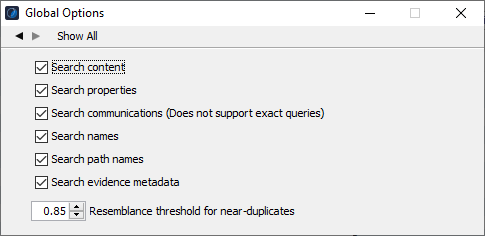
Select any of the following check boxes to define how you want to define your future searches:
| Option |
Action |
| Search content |
Select to search the content or text of indexed documents. |
| Search properties |
Select to search the properties of indexed documents. |
| Search communication |
Select to search communications that include or exclude communications metadata in the search results. For example, if you enter 'XYZ' in the Search bar, this returns results that include communications with 'XYZ' in the To, From, Cc, Bcc, and Sender fields. Searching communications allows you to streamline the way in which you can find communication metadata. Note: This option is independent of the communication metadata present in the item 'properties'; and while not supporting exact queries, it lets you search for your query without using single quotes ('). |
| Search names |
Select to search the Name field of indexed documents. |
| Search path names |
Select to search on the Path Names field of indexed documents. If you disable this setting, folder names that are the same as a search keyword will not return as search results. |
| Search evidence metadata |
Select to search the evidence metadata or user-defined data section of indexed documents. |
| Resemblance threshold for near-duplicates |
Set a resemblance value for the level of similarity needed to find near-duplicate documents. The value ranges between 0 and 1, with 1 targeting almost identical documents. The default value is 0.85. |
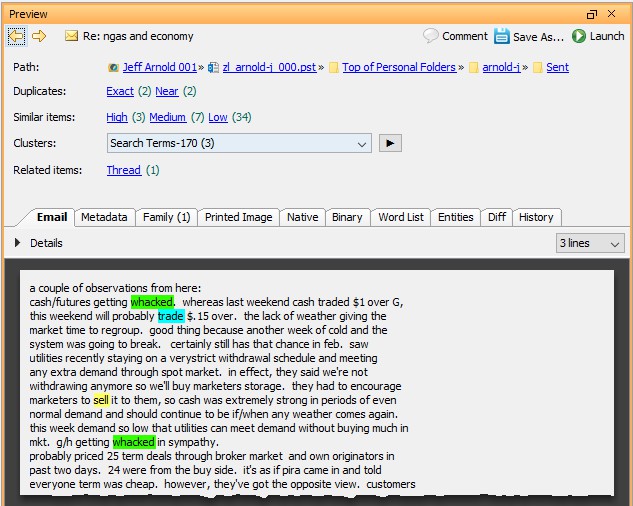
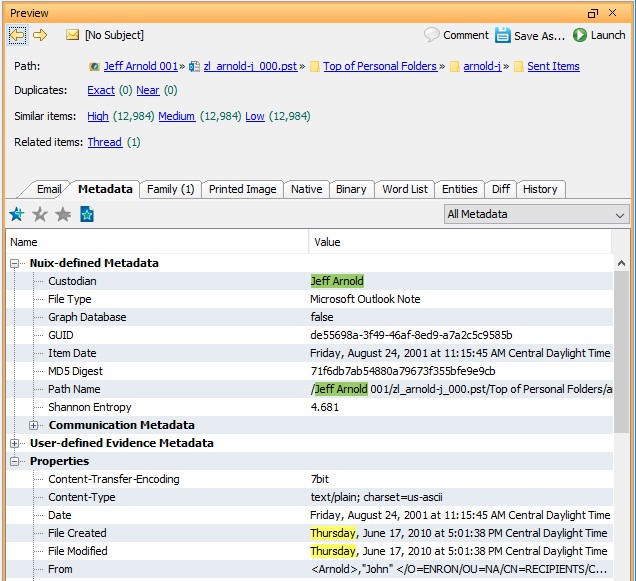
Search results return hits from item data and properties. You can direct hits to specific areas such as content or metadata or in the Preview pane.
You then can create a fielded search to only pull the results from specific areas of a file, such as a Metadata field only. See Indexed fields for lists of all possible fields you can use.
Use the Search bar in a Workbench tab

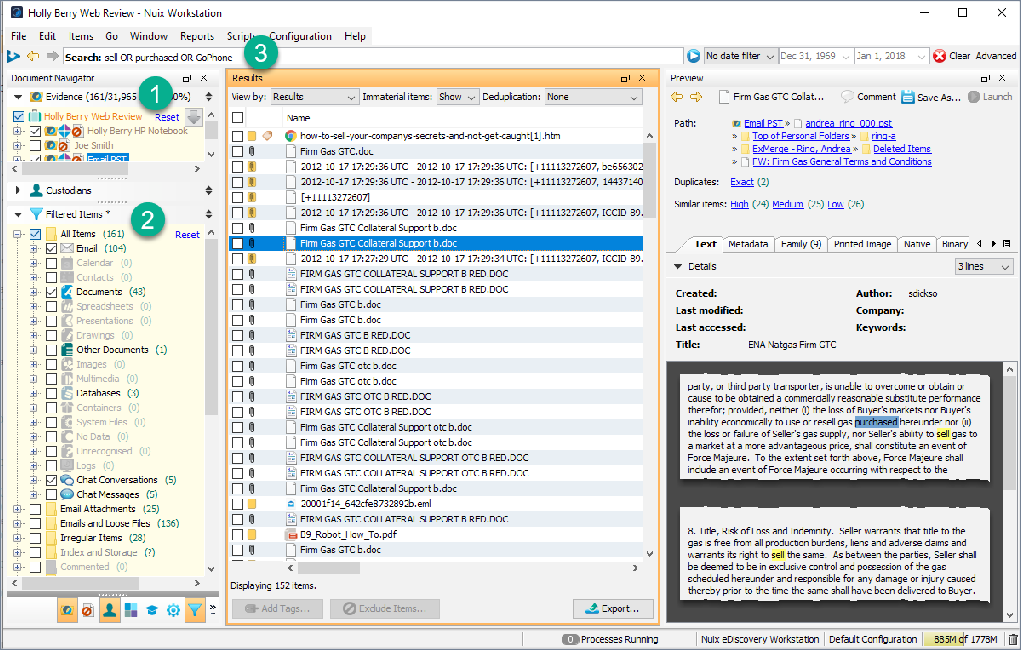
In any Workbench tab that opens automatically on processing data, use options in the Search bar as follows:
|
|
Search bar options |
| 1 |
Click the Save Search button (the blue down arrow) to view previous searches. When you save a search or edit a saved search, the Save Search dialog opens, then enter a unique name for the query, select the scope of the saved search, and click OK. |
| 2 |
Use the Previous and Next buttons to advance backwards and forwards through previously performed searches in your currently open session of Workstation. On finding a search, Workstation automatically runs the search and updates your current items in the Results pane. (You can find searches you performed in any previous sessions.) |
| 3 |
In the Search field enter any free text you can type or paste in as a search query. You can also cut and paste a predefined query into this field. Queries can be as long as necessary and use Boolean operators such as AND, OR, and NOT between search terms, with quotes around phrases. See Query types for the different kinds of queries you can enter. |
| 4 |
Click the blue Run button to launch the search criteria you entered in the Search field. You can do this before or after selecting a date range. See setting 5. |
| 5 |
Leave No date filter as the default, or select one of these four options to define a date range: Between Not Between After Before Then select an appropriate date from both the adjacent Calendar pickers. |
| 6 |
If needed, click the Clear button to clear the Search field and all the filters, and reset all search criteria back to their default settings. |
| 7 |
If you require a more complex query, click the Advanced button to open the Advanced Query Builder tool. This requires no specific knowledge about using Workstation or Lucene search syntax, or how it works. |
The Preview pane highlights all returned hits when you select an item from the Results pane.
Search using filters
Use the Evidence and the Filtered Items panes in the Document Navigator to narrow the search. When using the Search bar, unselected evidence and filtered items are excluded from the search.
To narrow your search by filtering:
Select particular evidence only from the Evidence pane in the Document Navigator to narrow the search.
From the Filtered Items pane, only select targeted categories of items.
Enter your search term in the Search bar and click Run.
Unselected evidence and filtered items are excluded from the search.
Select an item in the Results pane to view its details in the Preview pane.
Search using the Advanced Search Query Builder
This tool allows you to create complex search queries with minimal knowledge of how to use search syntax, and builds the search syntax for you into the Search field, in three easy steps.
To search using the Advanced Search Query Builder:
From Nuix Workstation's main window, click the Advanced button in the Search bar to open the Advanced Search Query Builder's window.
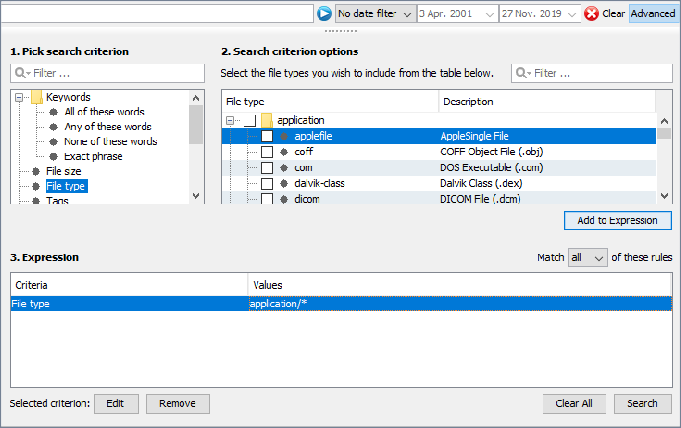
Build a search expression as follows:
Pick search criterion – Select a criterion (option or type of metadata) for your search from the list of available types: keywords, file size, file type, tags, comments, custodians, item sets, production sets, document ID, and filters.
Search criterion options – Enter values for the selected criterion. For example, if you selected File size, specify the minimum and maximum range to match against. See the following Advanced Query Builder controls section for more details.
Click Add to Expression to add the search syntax referred to as rules, to the query and display it in the Expression table.
Repeat Step 2 as many times as you need until the query contains all the criteria or expressions you need for your search.
Select whether to match all of the rules or any of the rules before running the query.
Click Search to add the built search syntax into the Search bar and execute the search.
Other actions you can perform in the Advanced Search Query Builder include:
Click Edit to change the Selected criterion in a rule for a selected expression in the Expression table.
Click Remove to delete a selected rule from the Expression table.
Click Clear All to clear all expressions from the entire Expression table.
Click Advanced in the Search bar to close the Advanced Search Query Builder without searching.
Advanced Query Builder controls
The following table provides more detail about how to complete the required value or values under Step 2 (of the builder) for each criterion you select in the Advanced Query Builder:
| Criteria |
Action |
| Keywords |
In the free-text Keywords field, enter terms and phrases to use, and then select one of the following options: All of these words, to return only items that match all the terms you enter. Any of these words, to return items that match any of the terms you enter. None of these words, to return only items that do not include the terms you enter. Exact phrase, to return only items that match the exact phrase you enter. |
| File size |
Specify both a Minimum file size and a Maximum file size in bytes to use in the search. This is then read by the Nuix Digest Input Size. |
| File type |
Specify as many file types as you like from the list box on the right. Type into the filter control to go directly to a particular file type or extension, or browse the list of file types to find and select file extensions to include in your search expression. (The list only includes the file extensions registered on your local system.) File type options include: application, audio, filesystem, image, message, server, system, text, and video. |
| Tags |
Select from the list of tags that exist in the case to match items with the selected tag or tags; then select to match items with any, all, or none of the chosen tags. |
| Comments |
In the free-text Nuix Comment field, specify a text string of comments to return only those items that include that string. |
| Addresses |
Select a domain or address from your list of domains and addresses. |
| Custodians |
Select a custodian from your list of custodians. |
| Item Sets |
Select an Item Set from your list of Item Sets. |
| Production Sets |
Select a Production Set from your list of Production Sets. |
| Document ID |
Enter the text that matches a Document ID. |
| Filters |
Select a filter from the list. |
Save a Search query and edit a saved search
Just like queries that you type into the Search bar, you can save the search queries built in the Advanced Search Query Builder using the Saved Search option, once the search syntax appears in the Search bar of a Workbench tab.
To save a search, and edit it once saved:
After running a search, click the Save Search button (the blue down arrow) to the right of the Search bar. (See Entry 1 in the table under the preceding Use the Search bar in a Workbench tab section).
From its drop-down menu, select Save Search.
In the Save Search dialog that opens, enter a name and the Scope for the saved search.
Once saved, if you decide to edit this saved search or another one, again click the Save Search button, and from the drop-down menu, select Edit Saved Searches.
In the dialog that opens, select the saved search you want to edit, and edit its name and scope if necessary.
Find help with searching
Nuix Workstation's Help menu contains two avenues of accessing help on how to search for data in the application. To access the application's Help menu for information relating to searching:
Right-click the Help menu and select Help Topics. A window listing built-in Nuix Help Topics appears.
Select How to Search, then Search Query Syntax, and Search Fields.
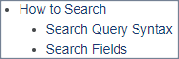
These topics contain a duplication of information in this guide with the same definitions of search queries, examples of the search query syntax and information on searching fields.
Also, from the Help menu, select Online Help to access the Nuix Customer Portal and search the site for additional documentation or seek technical support.
Search for previously used Search syntax
Nuix Workstation allows you to save the search syntax of commonly used queries, for easy reuse. To re-use a Saved Search:
From the Global Options window, select the Saved Searches option, and click the plus (+) sign.
Select the search query you want to re-use.
Note: You can only import a Saved Search in Nuix's own export format.