Export data in its native format
To export items in their native application's file format:
Select the required items in the Results pane, right click and select Export, then Export Items. The Export Items dialog opens.
Under Exported files:
In Export directory, select a directory to save the exported files, ensuring it is empty.
In Export items, select to export only the selected items or the top-level items.
In Sort Order, select the order in which to export selected items in the Results pane.
In Export copies of original data, select to export the items in one of these ways:
as Native versions
as PDFs
as Thumbnails
To export email messages, select the required format: EML, MBOX, MSG, PST, or NSF. If unselected, only reports generate.
Select Export printed images to create printed images of all items you select.
Select Export thumbnails to create thumbnails of all items you select.
Under Path options:
Select Single directory to save the exported file directly in the export directory.
Select Recreate directory structure of original data to replicate the original directory structure and save the exported file.
Under Reports:
In Export format, select an appropriate format for your report:
XHTML item reports
XHTML summary report
CSV summary report
In Metadata for summary report, select the Metadata Profile you want to be applied to the Summary report.
Click Parallel processing settings to configure Worker settings for the following:
Number of local workers
Memory per-worker (MB)
Worker temp directory
Worker broker IP address and port
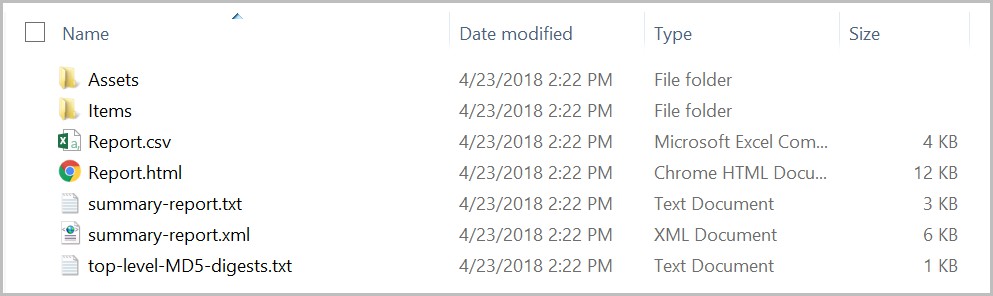
Click OK to display how many items successfully exported, and open the directory into which the exported data is placed. This typically creates the following folders and files:
An Assets folder containing the XML layout form for the HTML document.
An Items folders containing the native files.
A Reports .csv file containing individual item reports.
A Report.html file being an HTML thumbnail report, containing a summary of items.
A Summary Report that details case information and specifics about the export operation.
Note: The export does not include the top-level items or descendants in the directory and does not create a load file or maintain parent-child relationships for the items.
To export the parent email and all its attachments and include them in the set of items to be included, ensure you select Show All Top-level Items.