Production tab
Use the Production tab to preview the production set settings by validating them before you perform a legal export.
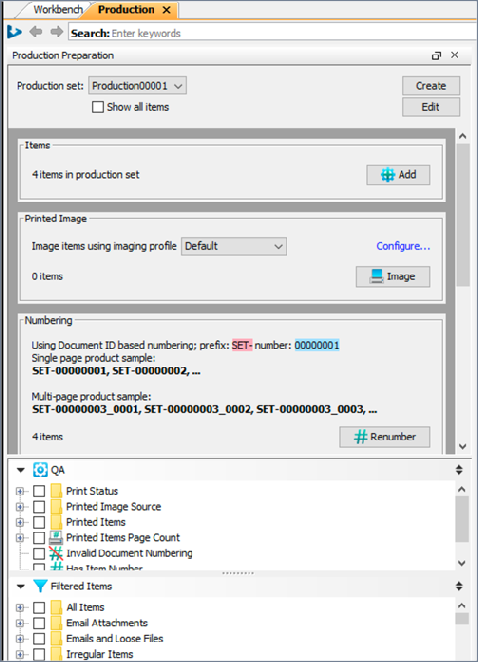
This tab is useful when preparing a legal load file for export. Then, also see Export data to a legal load file for further information.
Note: Nuix Workstation Guide to Searching in Nuix Products
See this guide for detailed information on how to configure and use a Production Set. This includes how to configure one as part of a legal export, and prepare and quality check items according to specific requirements. Requirements can include assigning a numbering scheme to items, and can include a specifying digitally imaged version of the native item.
Prepare a Production Set for an export
To prepare a Production Set (PS):
Go Window, and select New Production Tab.
In the Production Preparation pane, do any of the following:
From Production Set, select a PS to use to perform the legal export.
Its settings are the same as those set for your Production Profile. See Create a Production Profile in Configure profiles used for repetitive processes for details.
Once you select a Production Set, the following sections for these items appear in this pane, each with their own settings to configure:
Items
Printed Image
Numbering
Print Preview
Export Rules
Export - see the following sections for details on options here.
Select Show items not in Production Set to view items that are not in it.
Click Edit to modify the settings.
Click Create to create a new Production Set.
Perform quality assurance for your Production Profile settings
The Export section provides a quality assurance step before you export items or perform a legal export, to ensure the export runs successfully.
Notes:
-Ensure your profile rules are set correctly and are aware of how the production is tracking any issues in it.
-Check the Export section to see items in the Production Set and understand the Pre-export Summary.
-Expand the areas in the QA section to filter the Production Set list for items that fail a stage, have exceptions, or unexpected issues.
The Export section provides you with options to do the following: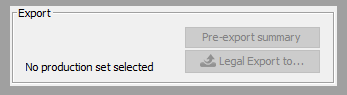
Click the Pre-export summary button to do both the following before you perform a legal export:
Preview the settings before you perform the export.
Produce a preview summary of the export.
Check its QA section for items that may fail stages or have exceptions or unexpected issues.
Click the Legal Export to button to select which file type to use for the export.
Production Details Preview tab
This tab shows details of the stage of the item, and how it has been treated by a profile (and the specific profile). It helps you understand how different items react to the Production Set and profile settings.